vSphere 8 to VCF 9 Upgrade Process
For this example, we’ll be showing how to upgrade/converge a basic vSphere 8 environment without VCF to VCF 9.
First, review the official documentation for the pre-requisites and relevant steps.
Our demo platform here is a single vSphere 8.0u3 vCenter and 4x ESX hosts running 8.0u3 and vSAN.
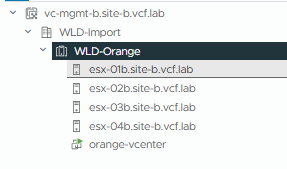
The quick overview of the steps for this scenario is as follows:
Upgrade the vCenter to v9
Deploy & Configure the VCF Installer
Create a new VCF9 Deployment, using the VCF Installer, specifying an existing vCenter.
Now, step 1 in the Upgrade Documentation specifies that we must upgrade the vCenter to version 9 before we can begin.
Ensure your vCenter instance is running the supported version for your convergence scenario.
- If you are converging to VCF 9.0.0, your vCenter instance must be version 9.0 or later. See Upgrading the vCenter Appliance.
- If you are converging to VCF 9.0.1 and your vCenter instance is without an existing NSX registration, upgrade your vCenter instance to version 9.0 or later. See Upgrading the vCenter Appliance.
- If you are converging to VCF 9.0.1 and your vCenter instance is version 8.0 Update 1a or later and has an existing NSX registration with version 4.1.0.2 or later, proceed without upgrading.
The vCenter upgrade process is basically the same as previous versions. Download the ISO from the Broadcom support portal, mount it and begin the installation process. Make sure you have backups and snapshots of your vCenter before starting this process.
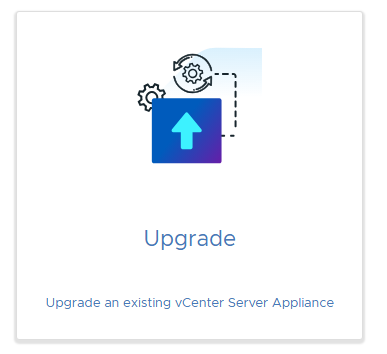
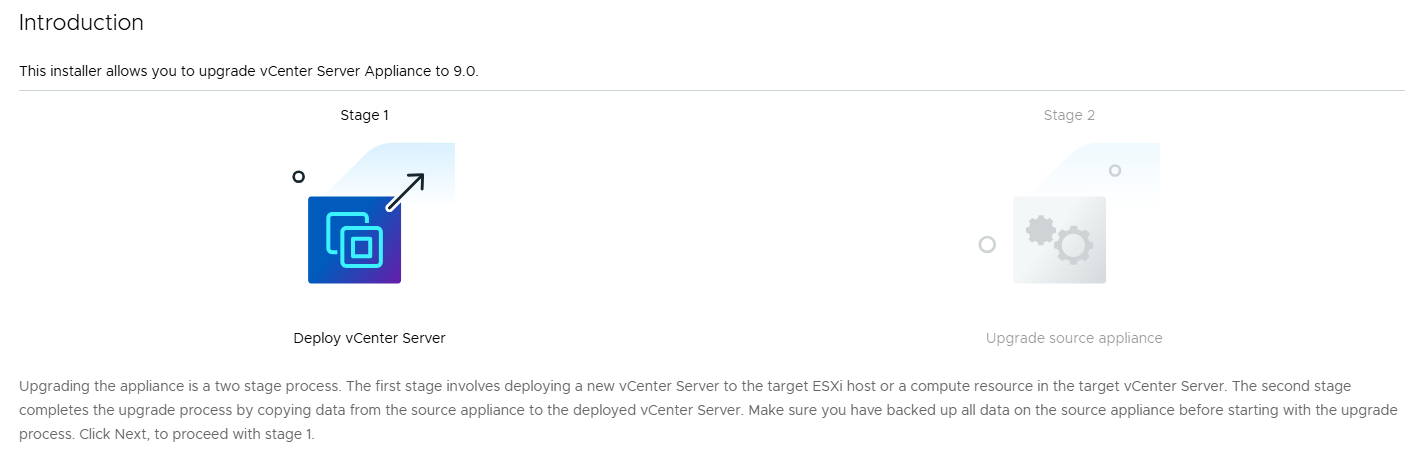
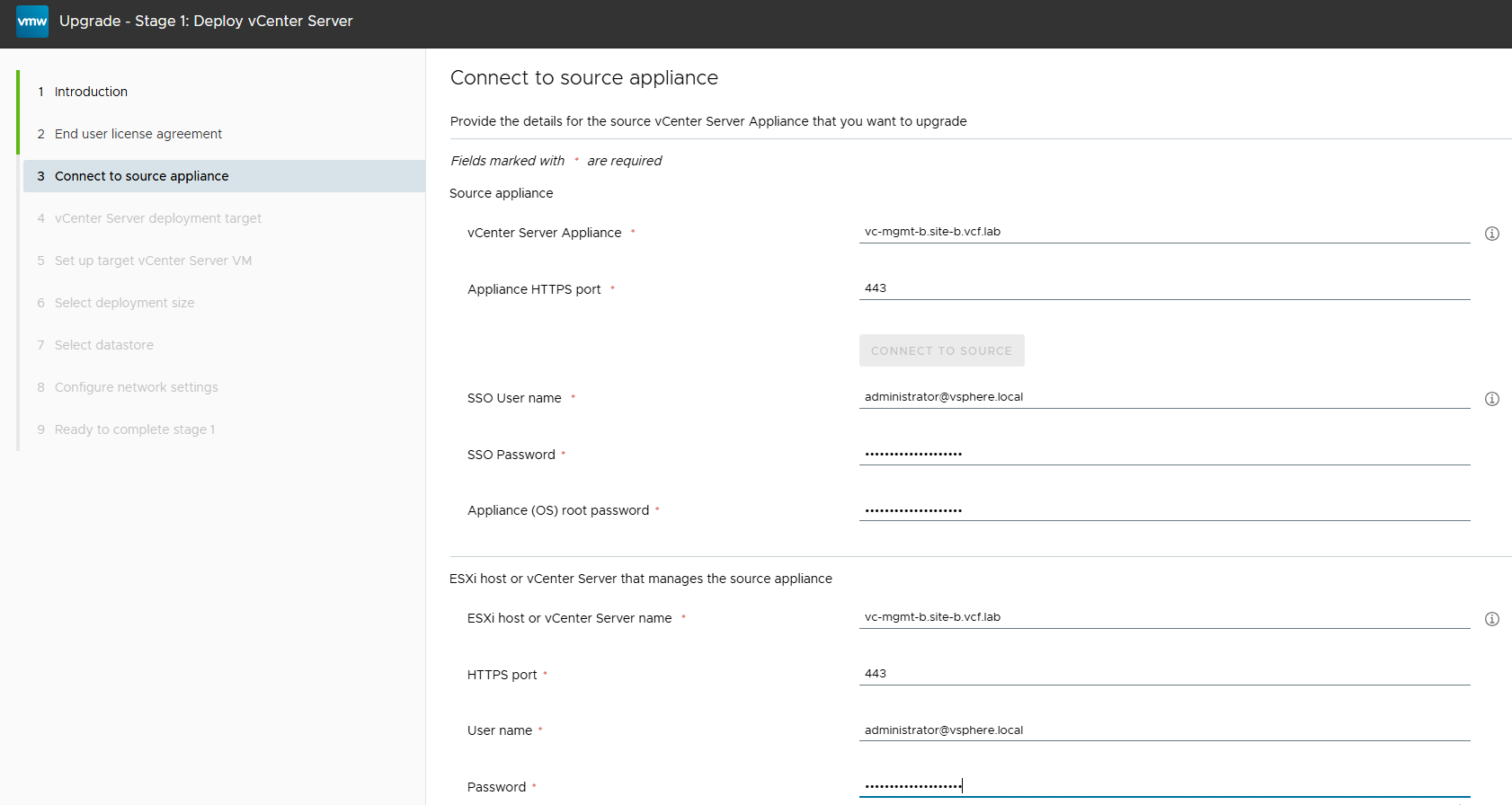
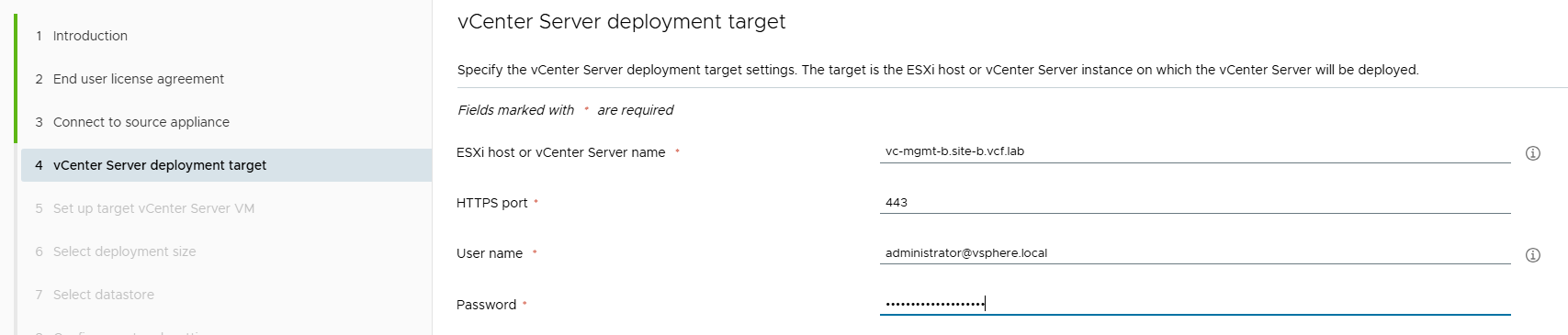
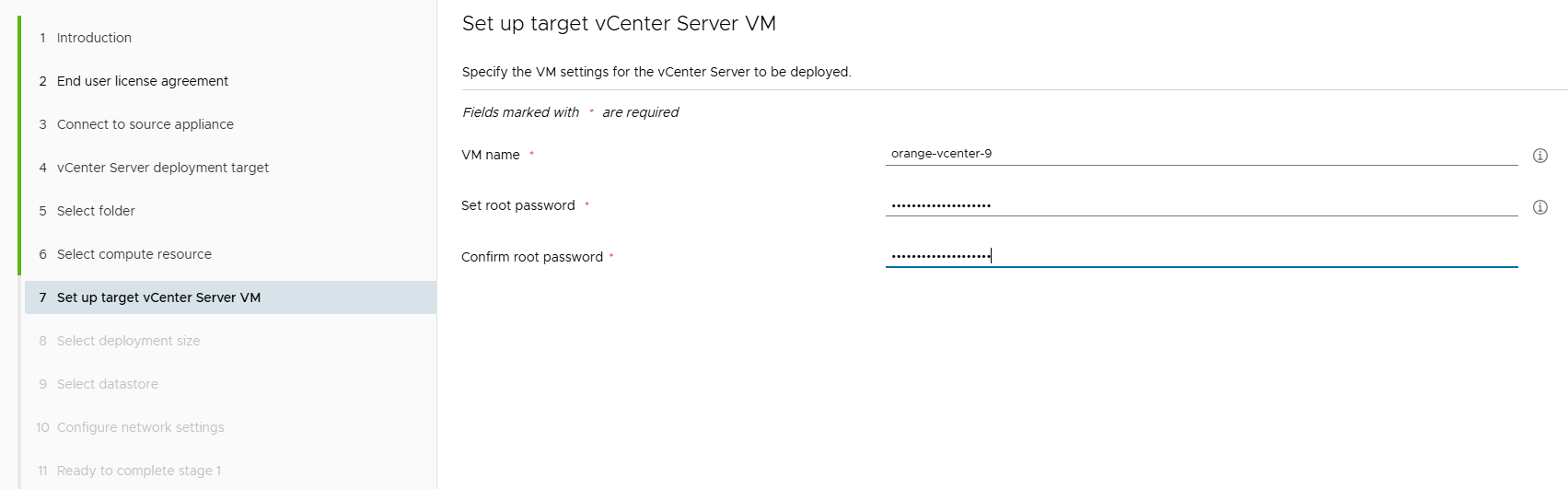
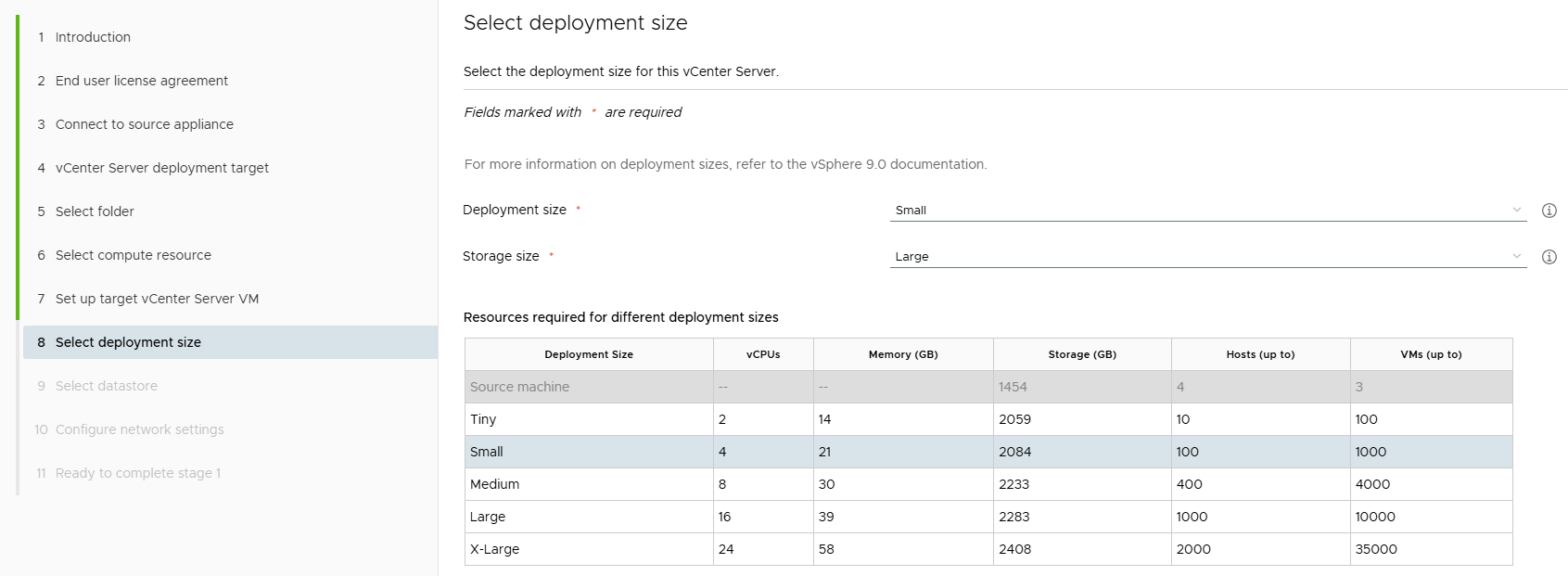
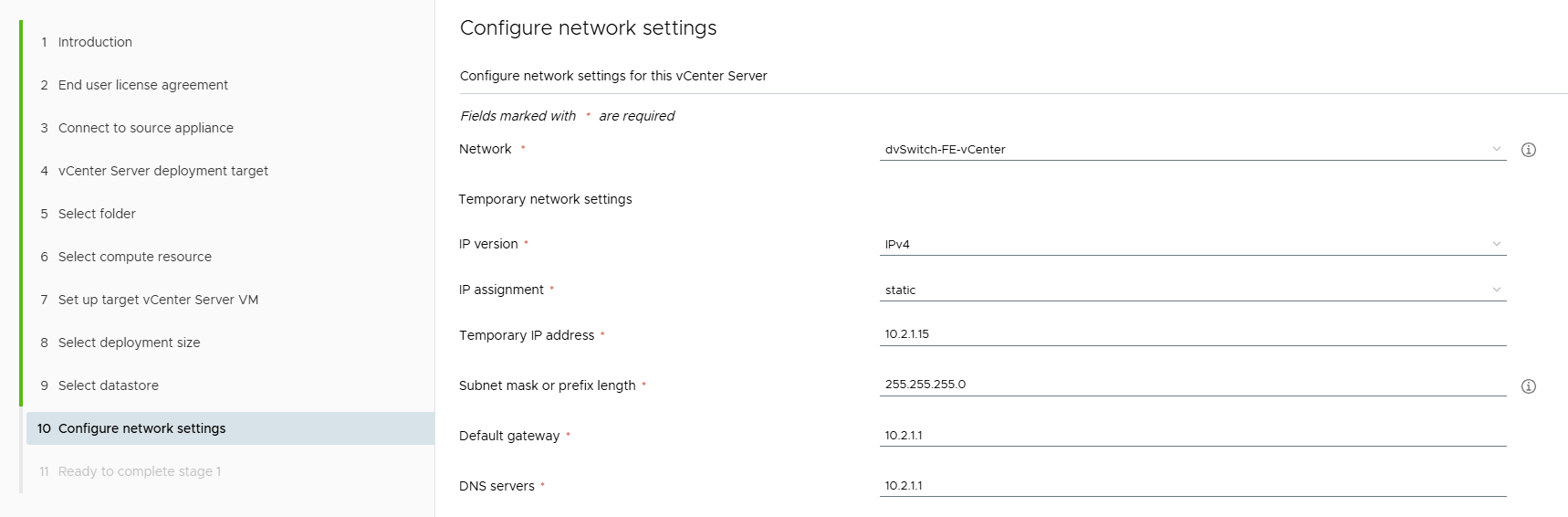
Now review the summary and click finish – this will begin the upgrade process which deploys a new VCSA appliance, migrates your data, then performs a cutover.
Once this is completed, we can begin the VCF 9 convergence.
Step 2 on the official documentation states that we must be running supported ESX host versions before we can begin:
Ensure your ESX hosts are running the supported version for your convergence scenario.
- If you are converging to VCF 9.0.0, your ESX hosts must be version 9.0 or later. See Overview of the ESX Host Upgrade Process.
- If you are converging to VCF 9.0.1 and your ESX hosts are version 8.0 Update 1a or later, proceed without upgrading.
We are already on ESX 8.0u3 so we can now proceed with the next steps.
Deploy the VCF Installer Appliance, configure the depot with your download token and download the installer binaries.
Now we can run through the component deployment using the VCF Installer.
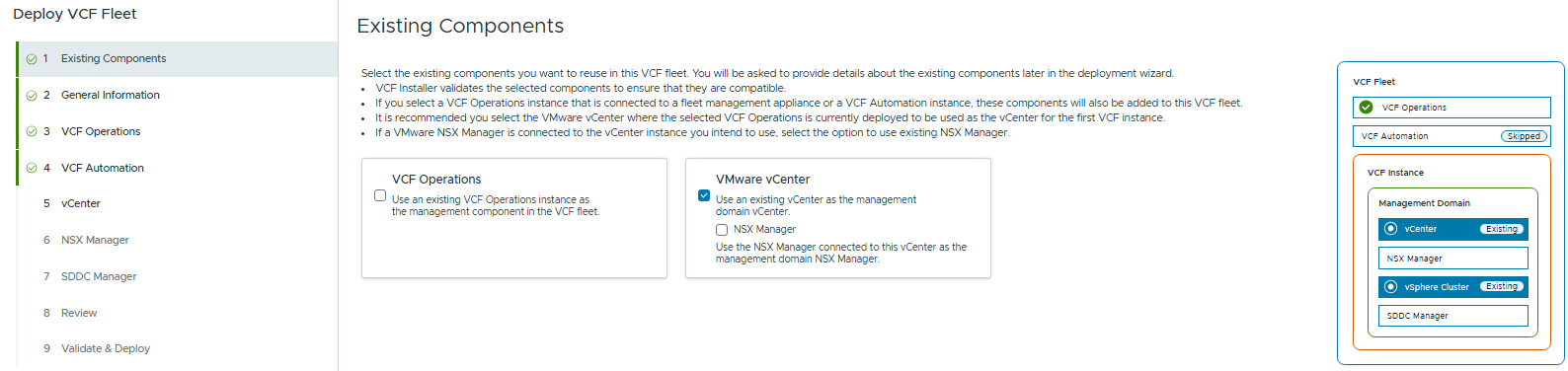
I’ll be skipping the VCF Automation deployment for this demo. On the first screen, we select that we will be deploying with an existing vCenter.
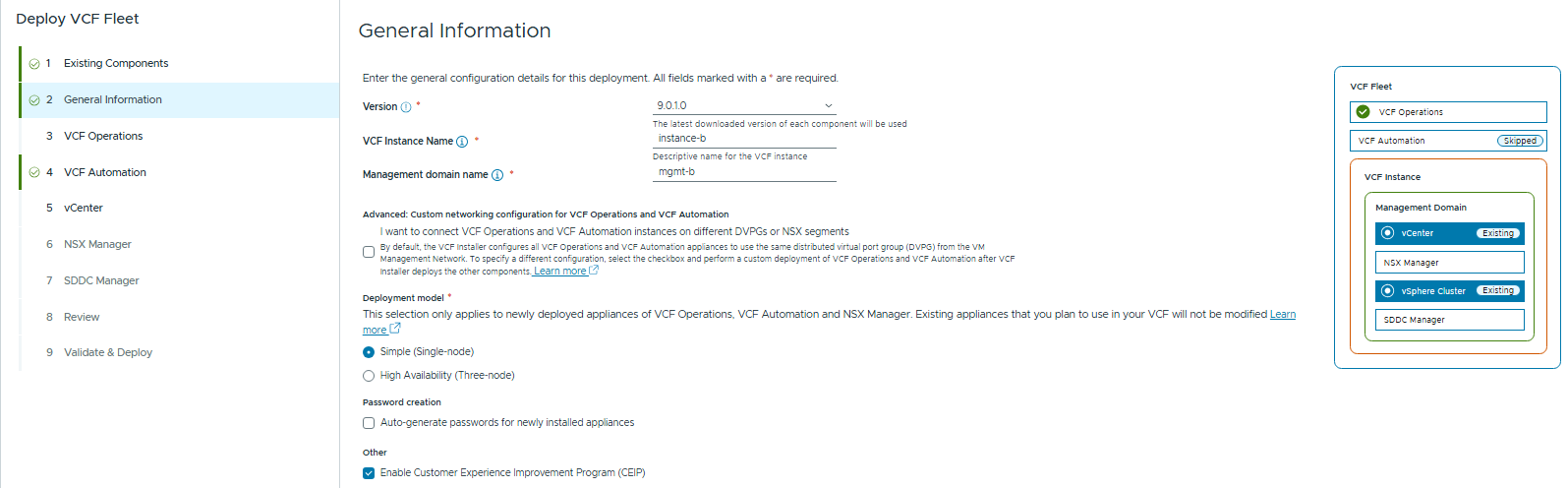
Configure the deployment version
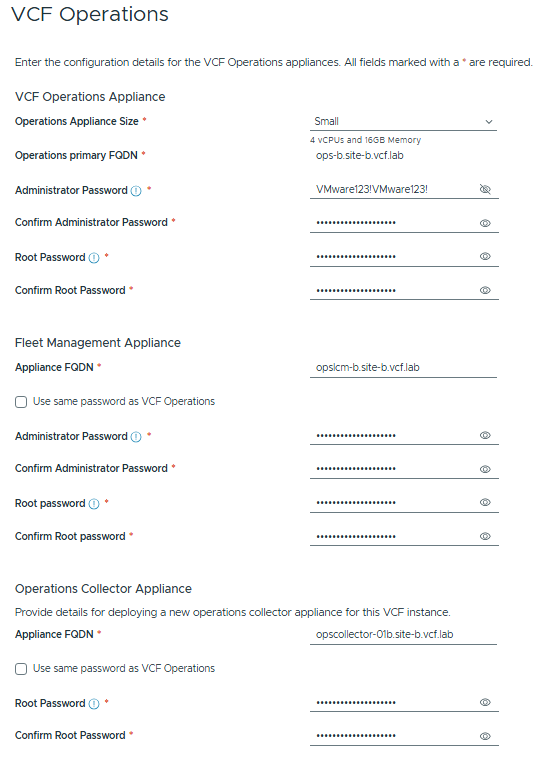
Configure the VCF Operations details
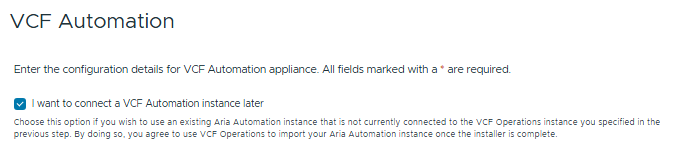
Tick this box, as we’re skipping the Automation deployment.
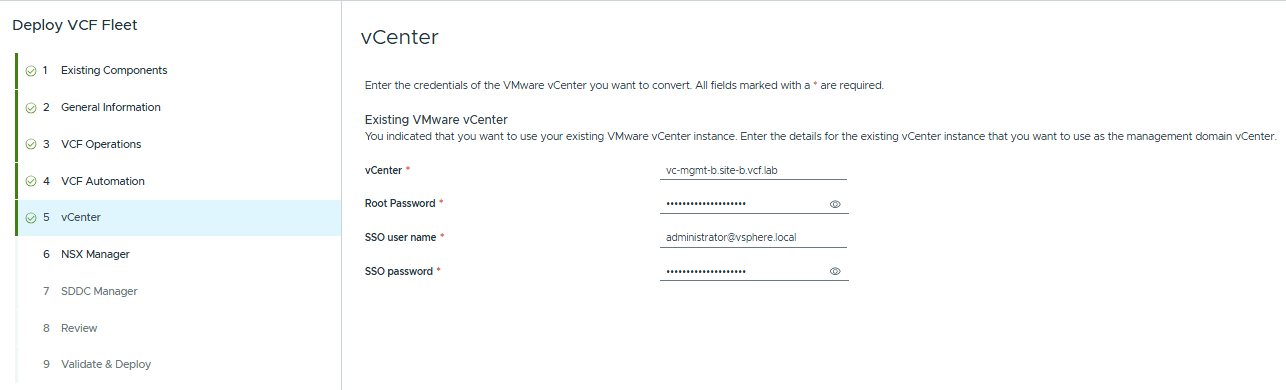
Enter the details for the existing vCenter that we upgraded earlier:
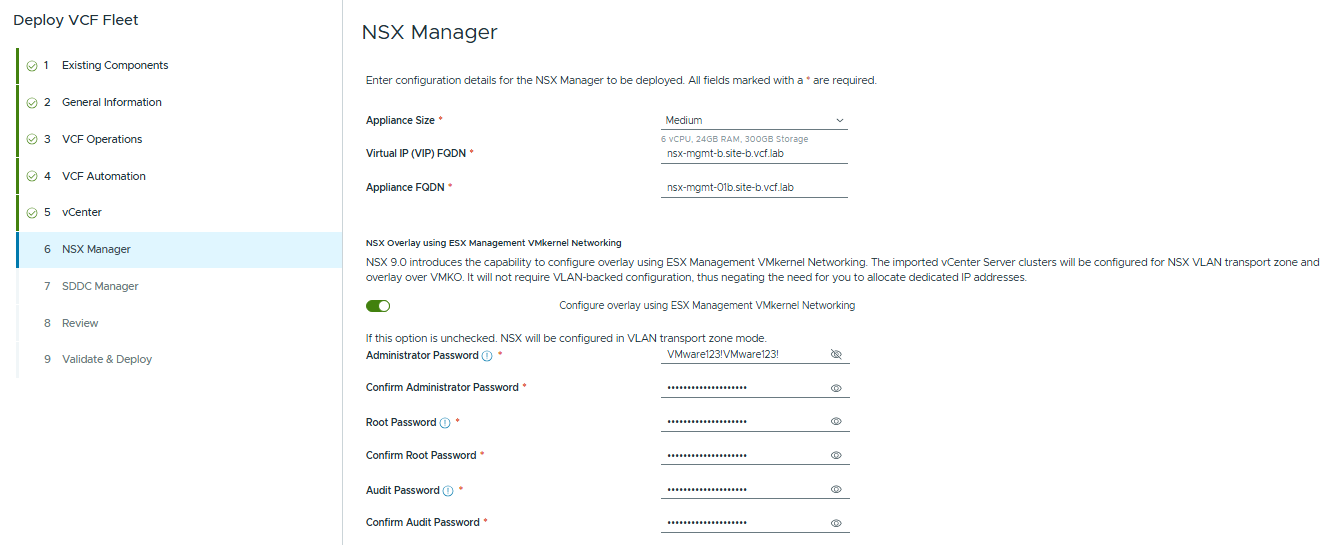
Configure the NSX Manager details:
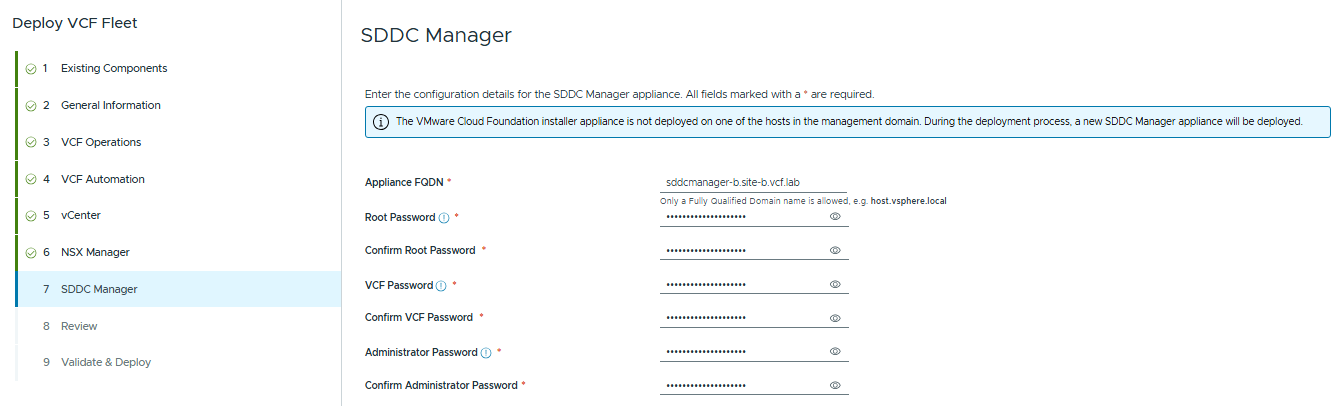
Enter the SDDC Manager details for the appliance that will be deployed:
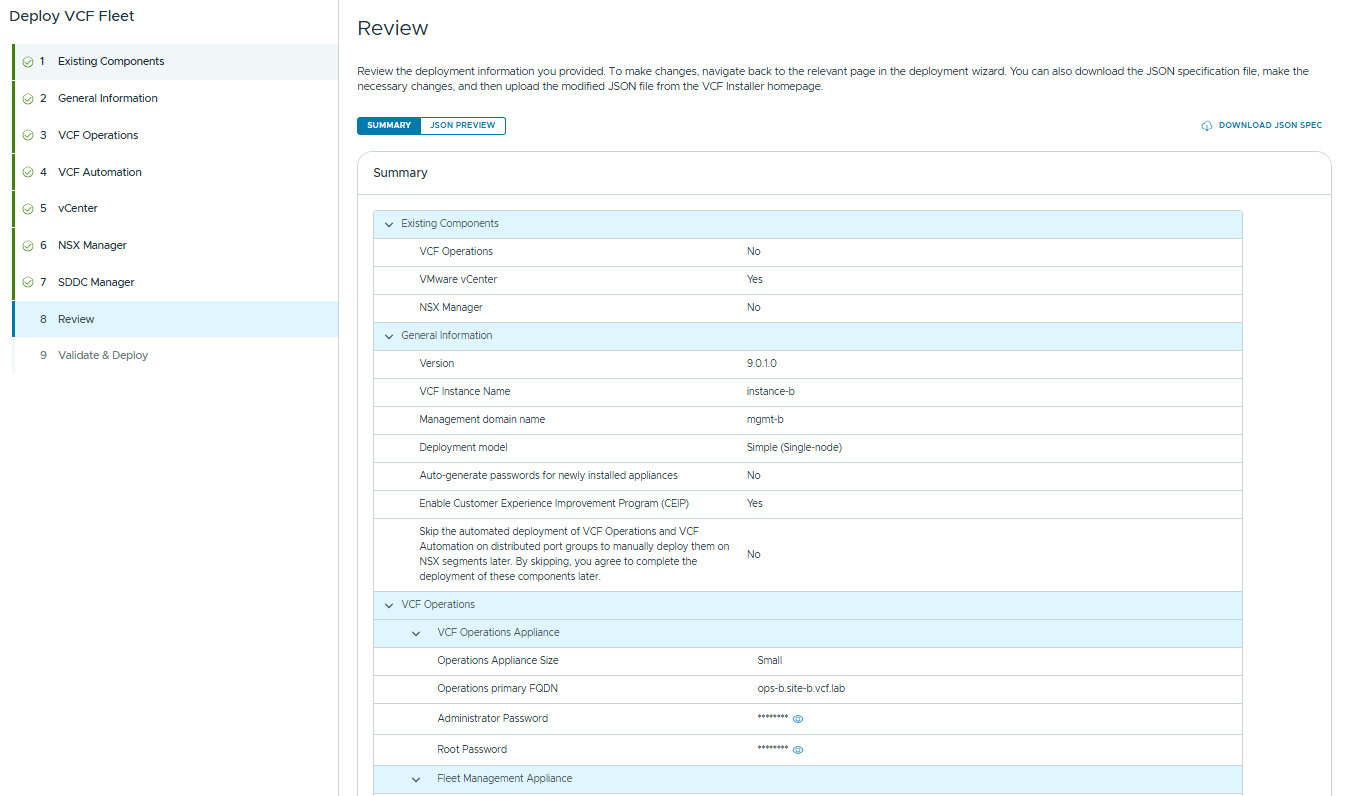
Review all of your inputs, then click next.
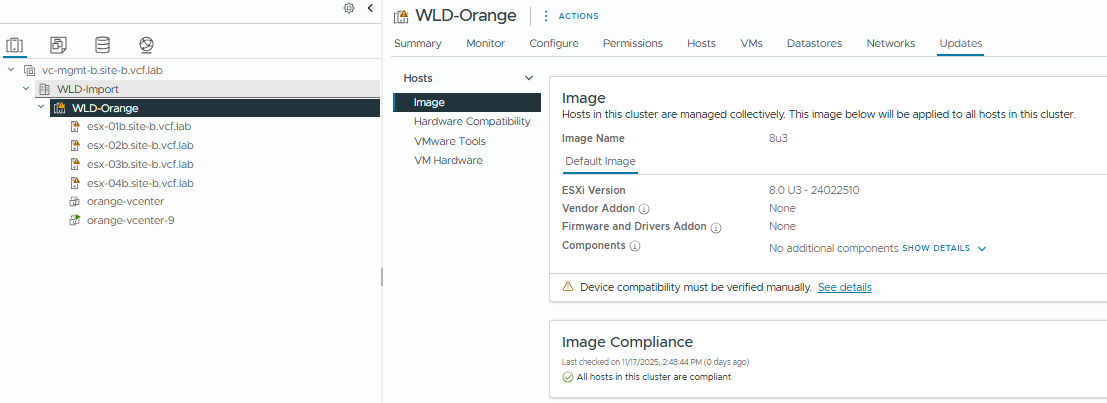
Now I had an issue with the validation – the ESX cluster needs to be converted to Image Mode, so I’ll do this in the vCenter then re-try the validations.
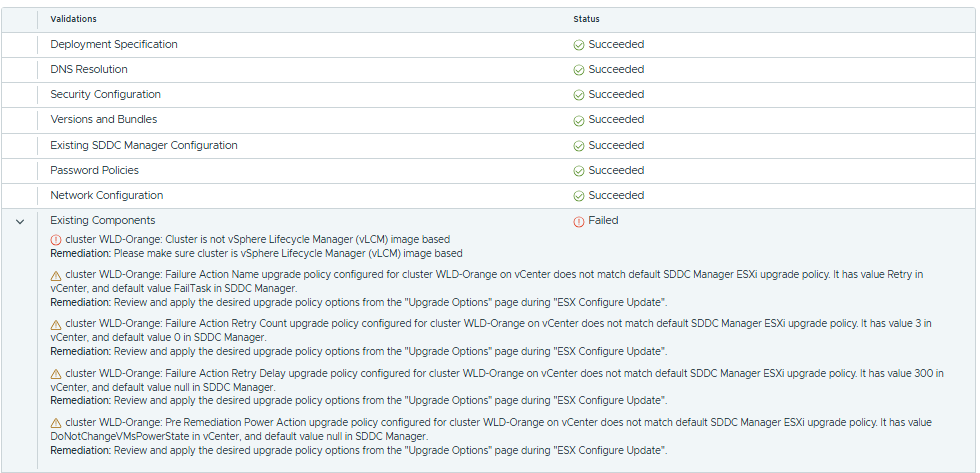
Image mode is now fixed, so we’ll re-validate.
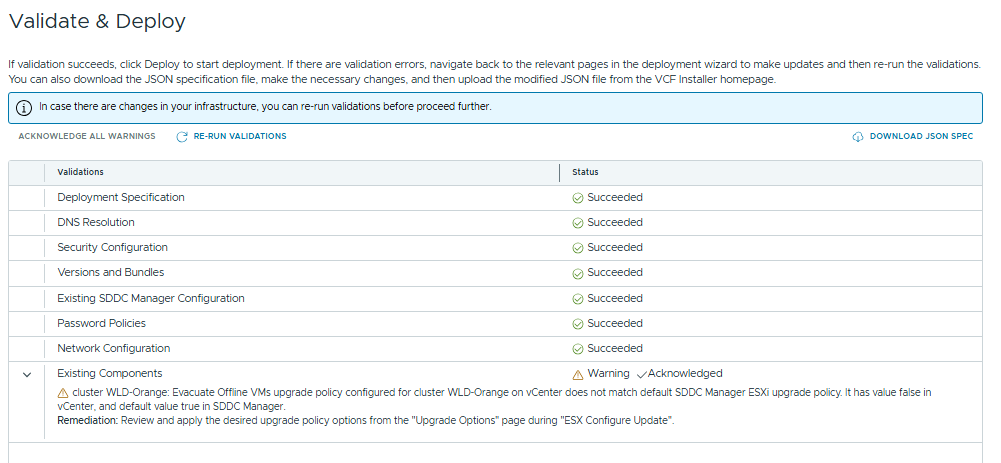
Now with the pre-checks complete, we can start to deploy.
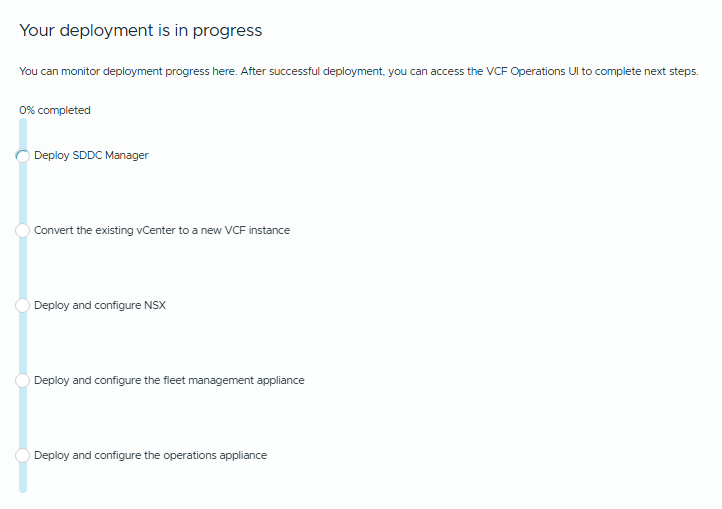
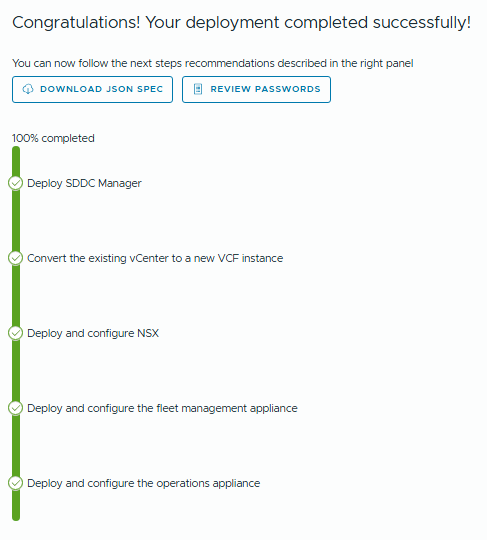
Now after waiting some time, the deployment has completed:
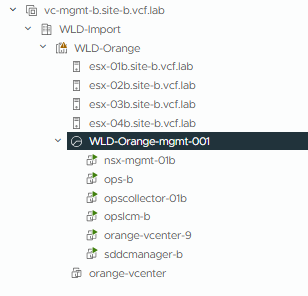
We can also see all of the new VMs deployed into the domain.
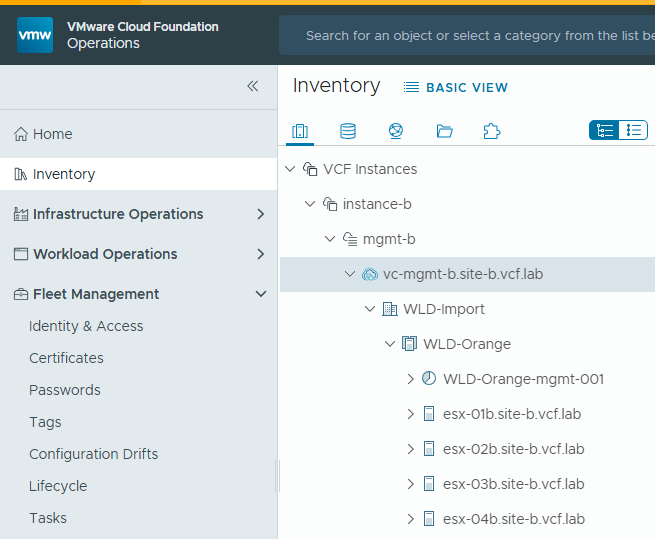
And we can see the domain in the VCF Operations Inventory
Now the last steps would be to complete the upgrade – we still have an outstanding ESX 9 upgrade to complete.
Browse to Fleet Management / Lifecycle and select the domain, then click Plan Upgrade
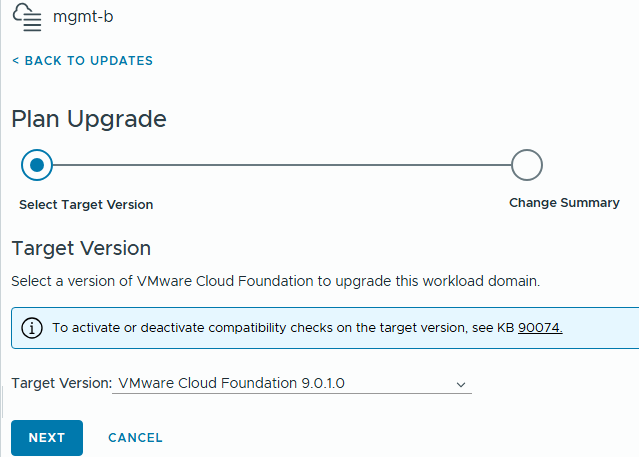
Click Next
We can see that the only component not upgraded yet is ESXi
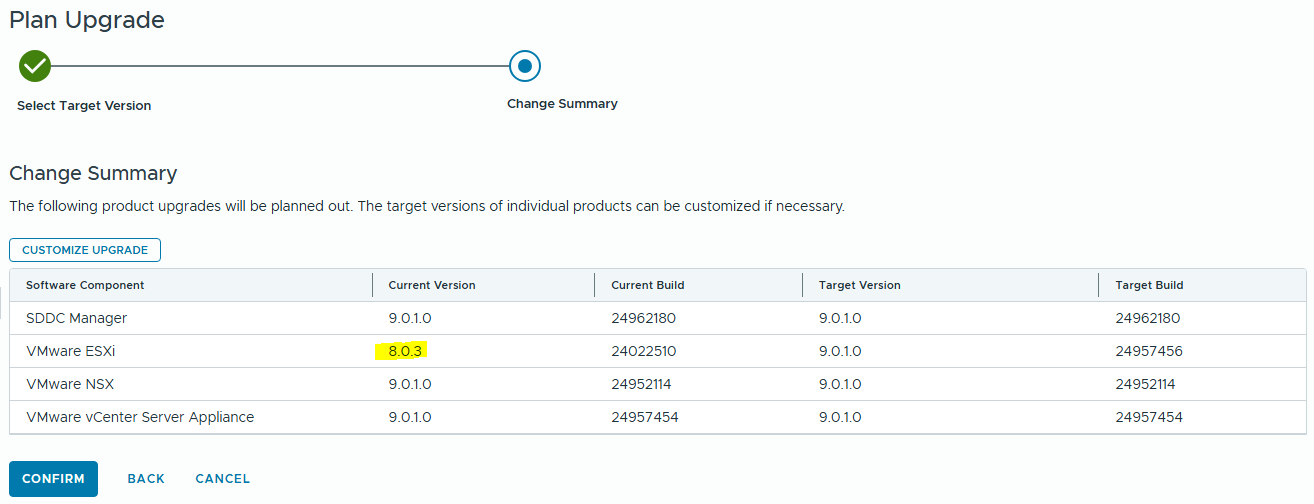
Click confirm, then you can follow the standard process to upgrade the ESXi Cluster.
Lastly – Don’t forget to register your licensing again once you have completed the upgrade.